A delivery truck drives up a vertical ramp at night, takes off and lands on rocket thrusters in a cloud of smoke. Nobody filmed that. I took an existing video and had an AI replace only the vehicle.
In this article I show you how it works. You don’t need a camera or editing skills. At the end you get my prompt template, ready to use for your own vehicle or product.
My video, 34 seconds, music only, on-screen text in German. Made with AI.
Replace instead of regenerate
Most people know AI video from a text description. You type “delivery truck flies off a ramp” and the AI builds a scene. The result often looks good. But it is a brand-new video every time, and the vehicle in it only looks similar to yours.
For a business, that is a problem. Your company vehicle has a specific shape, specific lettering and your logo. That is exactly what needs to be right.
So I take a different approach. I start with a finished video and have the AI replace a single object in it. The on-screen text in my video says it plainly: the tool swaps only the car, everything else stays. Camera movement, lighting, smoke and shadows come from the source video. The AI only has to fit in the vehicle.
Step 1: Upload video and photo
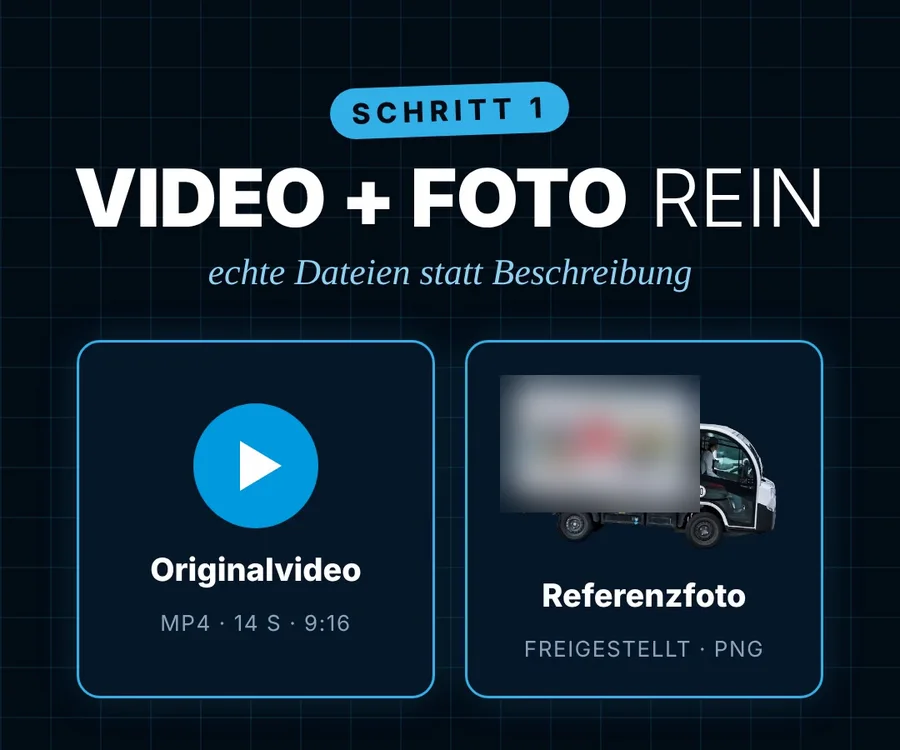
The AI needs two real files, not a description:
- The source video with a vehicle or object in it. Mine was a short vertical video.
- A photo of the new subject, cut out, meaning without background. That is your company vehicle, your product or your packaging.
The cleaner the photo, the better the result. Shoot your subject in even light and from the angle it mostly appears at in the video. Many image editors now remove the background with one click.
Step 2: Pick the right tool
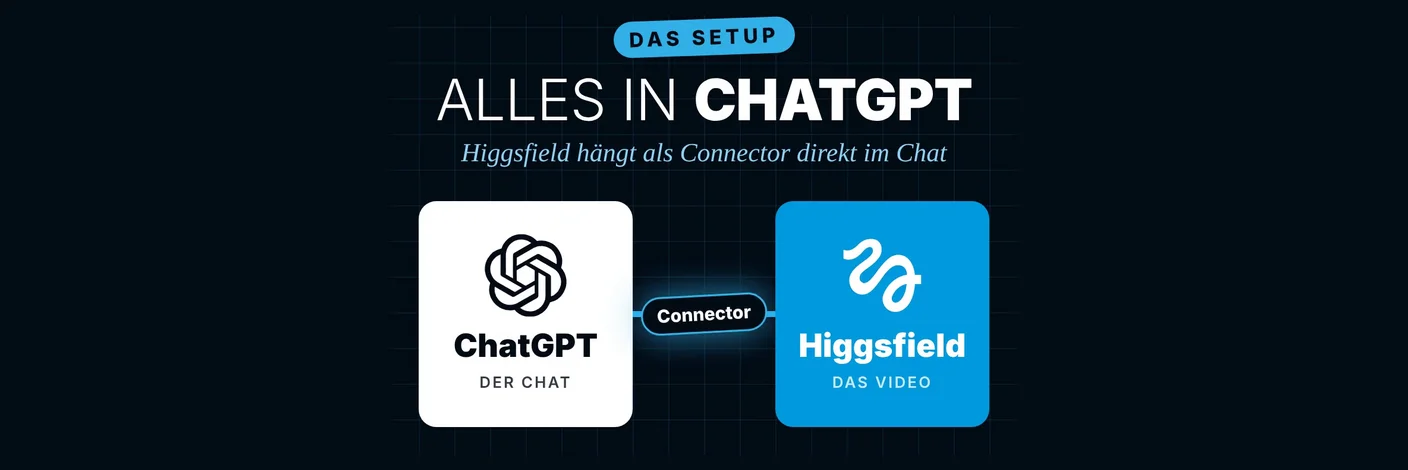
This is where everything is decided. I work in ChatGPT and have connected the video tool Higgsfield there. That way I do everything in one chat and don’t have to switch between programs.
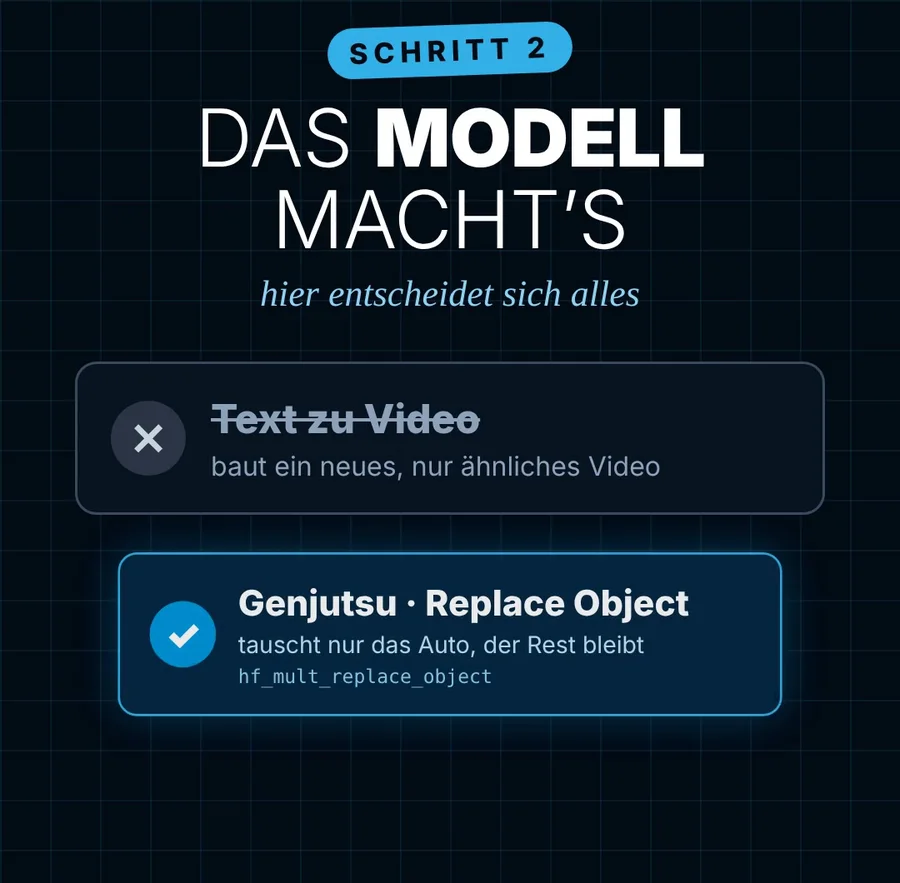
Higgsfield offers both routes: text to video and a tool that replaces an object (“Replace Object”). For business videos I always choose replacement. It is the only way your subject really stays your subject.
Other providers have similar features. When choosing one, check two things: the tool must accept your own video and your own photo, and it must explicitly change only part of the image.
Step 3: A prompt in three parts
The prompt is the instruction to the AI. Mine has three parts, and that structure is the real trick:
- What gets replaced. One sentence that names exactly one object and points to the reference photo.
- What must stay. Length, camera work, lighting, surroundings, shadows, format and the proportions of your subject, including the logo.
- What must not happen. No new background, no different camera motion, no distorted logo, no flicker, nothing disappearing.
The third part is often forgotten. Yet these are exactly the flaws that give AI videos away. If you rule them out explicitly, you are less likely to end up with a video you have to throw away.
Here is my template to copy. Replace the parts in square brackets with your details:
Replace ONLY the [vehicle/object] in the supplied source video
with the exact [your vehicle/product] in the reference PNG.

Preserve the COMPLETE original clip from first to last frame
with no cuts, omissions or shortening.
Keep the object in the exact corresponding position and movement.
Preserve original camera perspectives, lighting, surroundings
and realistic shadows.
Maintain accurate proportions, colors and the [logo/lettering].
Preserve the [9:16 vertical] format.

Do not change backgrounds or camera motion.
No morphing, logo distortion, flicker, disappearance
or altered sequence.
The word “ONLY” at the start matters. It tells the AI to leave everything else alone. If you want to go deeper into writing instructions like this, start with prompt engineering.
Step 4: The AI works, you check
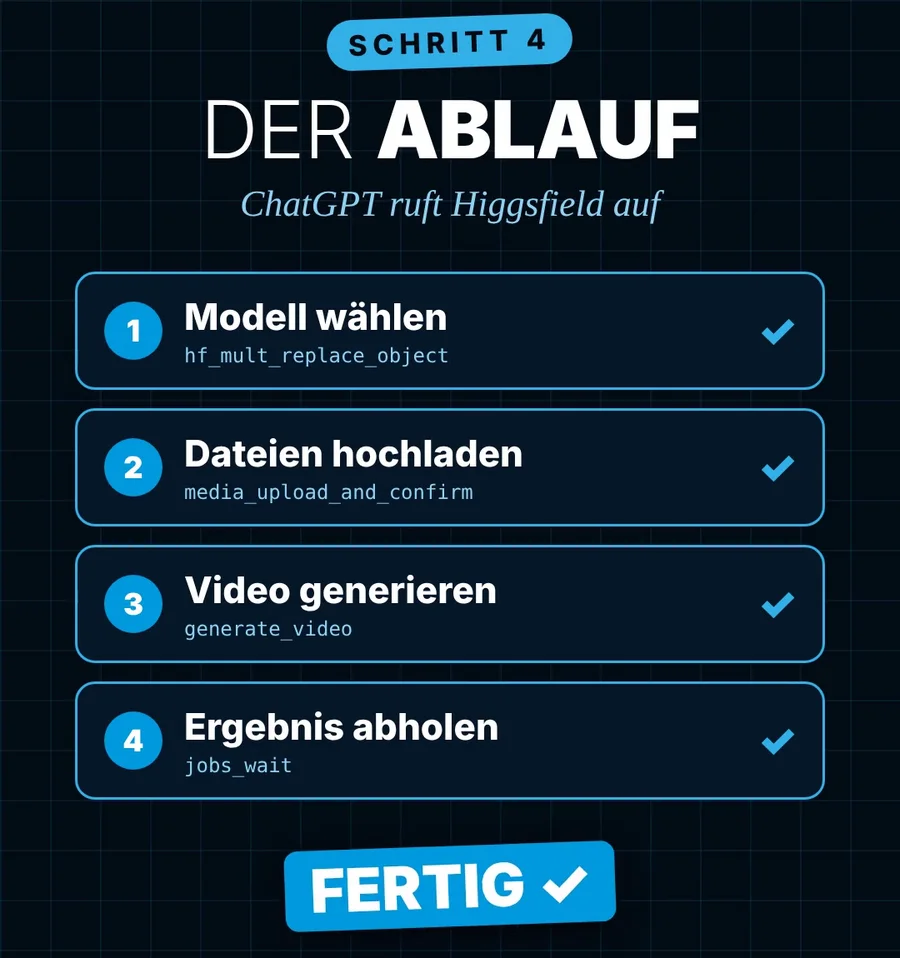
ChatGPT handles the rest. It picks the tool, uploads your two files, starts the generation and collects the finished video. You wait and look at the result.
Look closely, ideally several times and on your phone:
- Is your logo readable and undistorted in every shot?
- Does the vehicle keep the same size and shape throughout?
- Does anything flicker or briefly disappear?
- Do shadows and lighting match the surroundings?
If you spot a flaw, name it explicitly in the third part of the prompt on the next run. Plan for a video to sometimes need more than one attempt. Every run uses credits with the provider.
How businesses can use this
A flying delivery truck grabs attention. The real benefit, though, is that one good source video gives you many variants. A few ideas:
- Show off your company vehicle: your service van in a scene you could never film, as a hook for Instagram or LinkedIn.
- Product in a new setting: your packaging on a shelf, on a table or in the snow, without a photo shoot.
- Ad variants: the same video with different products, to test what performs better.
You can read more about use cases and how I support businesses with AI video on my AI video page. How videos get found on Google is covered under video SEO.
What you can do now
- Find a source video: Take a short video of your own in which a vehicle or object is clearly visible.
- Photograph your subject: Take a clean photo of your company vehicle or product and remove the background.
- Adapt the prompt: Copy my template and fill in the square brackets.
- Check the result: Watch the video several times on your phone before publishing.
Next step
Want to put your own vehicle or product in the spotlight like this, but not sure where to start? Let’s talk. Book your free initial consultation now.
Need support?
As an SEO freelancer with over 20 years of experience, I help you grow your online visibility sustainably.

Über den Autor
Christian SynoradzkiSEO-Freelancer
Mehr als 20 Jahre Erfahrung im digitalen Marketing. Fairer Stundensatz, keine Vertragsbindung, direkter Ansprechpartner.
All articles in the Blog.